Mainframe and IBM systems
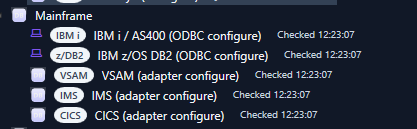
This guide covers the Mainframe source group in Data Source Explorer (DSE):
- IBM i / AS400 through IBM i Access ODBC
- IBM z/OS Db2 through the IBM Db2 ODBC/CLI driver
- VSAM through an ODBC virtualization layer or a DSE-compatible REST adapter
- IMS through REST/API or ODBC virtualization
- CICS through REST/API or ODBC virtualization
Terminology note: IBM i runs on IBM Power rather than IBM Z. DSE groups IBM i together with the mainframe/legacy enterprise connectors because operators commonly manage these systems as one legacy-data estate.
1. Architecture and support model
DSE does not emulate a mainframe protocol. It uses standard enterprise access layers:
| DSE source | DSE transport | What must exist outside DSE |
|---|---|---|
| IBM i / AS400 | ODBC | 64-bit IBM i Access ODBC Driver, network access, IBM i user |
| IBM z/OS Db2 | ODBC | 64-bit IBM Data Server Driver for ODBC/CLI, Db2 Connect licensing path, DRDA endpoint |
| VSAM | ODBC or REST | virtualization/middleware or a compatible adapter |
| IMS | REST or ODBC | API/service layer or virtualization driver |
| CICS | REST or ODBC | API gateway/service layer, for example a z/OS Connect-facing adapter |
The normal DSE sequence is:
- configure the host or adapter
- prove connectivity outside DSE when possible
- choose the correct source type in the Mainframe group
- enter the connection string
- click Test connection
- click Load tables (or load objects/services)
- select an object and inspect Table info, Preview, and Row details
- run a sample query
- build catalog/output/deployable definitions only after read access is stable
2. Security rules before you start
For production and shared test systems:
- use a dedicated read-only DSE account where possible
- never place a production password in documentation, screenshots, source control, or deployment scripts
- use placeholders such as
<password>,<host>, and<user>in saved examples - grant only the libraries, schemas, tables, services, or transactions that DSE must inspect
- prefer TLS/VPN/private routing when the host supports it
- if an SSH tunnel is used, the SSH transport identity can be different from the database identity
- do not make the DSE database user a security officer or system administrator merely to simplify a test
The examples below use the names DSELAB and DSETEST. Replace them with values approved by your IBM i administrator.
IBM i / AS400 — complete setup
3. IBM i prerequisites
You need:
- an IBM i system that is running and reachable
- TCP/IP active
- a normal IBM i user for ODBC, for example
DSELAB - IBM i host servers running
- a Windows workstation running the same bitness as DSE (DSE is expected to use the 64-bit ODBC stack)
- the IBM i Access ODBC Driver installed on Windows
- at least one library/object that the DSE user may read
You can use an existing IBM i, an on-premises partition, or a cloud-hosted IBM i such as Power Virtual Server. The DSE configuration is the same once the host is reachable.
Optional reference lab: IBM Power Virtual Server (PowerVS)
If you do not have an existing IBM i partition, a cloud-hosted IBM i Power Virtual Server (PowerVS) can be used as a connector-validation lab. PowerVS is optional; DSE does not require IBM Cloud specifically.
Recommended provisioning sequence:
- In IBM Cloud, create or select a Power Virtual Server workspace in a region approved by your organization.
- Create a virtual server instance from an IBM i image/version supported by your IBM entitlement and test plan.
- Size CPU, memory, and storage for your IBM i workload. Connector testing does not require production sizing, but the partition must have enough resources to complete IPL and run Db2 for i host services reliably.
- Attach the partition to a private network. Add public connectivity only when your network design requires it; restrict inbound access to approved source addresses.
- Wait until the instance is active, then open the IBM-provided console/VNC path and complete the normal IBM i first-start tasks, including any software-agreement acceptance required by the image.
- Record the routable IBM i host name or IP. If the IBM i host-server ports are intentionally private, also record the SSH/bastion path that will be used for tunneling.
- Sign on to IBM i, create the DSE read-only account and test library described below, then start the IBM i host servers.
- Validate networking from Windows before configuring DSE.
A safe validation topology is one of these:
Direct/private route:
Windows DSE -> IBM i host -> IBM i Access host servers -> Db2 for i

SSH tunnel:
Windows DSE -> 127.0.0.1 forwarded ports -> SSH on IBM i/bastion -> IBM i host servers -> Db2 for i
PowerVS billing and IBM i licensing are independent of DSE. Stop or delete temporary lab resources when they are no longer required, according to your organization policy.
4. Sign on to IBM i
Use your normal 5250 access method or cloud console and sign on with an administrative account only for the setup operations that require it.
A normal IBM i main menu looks similar to this:
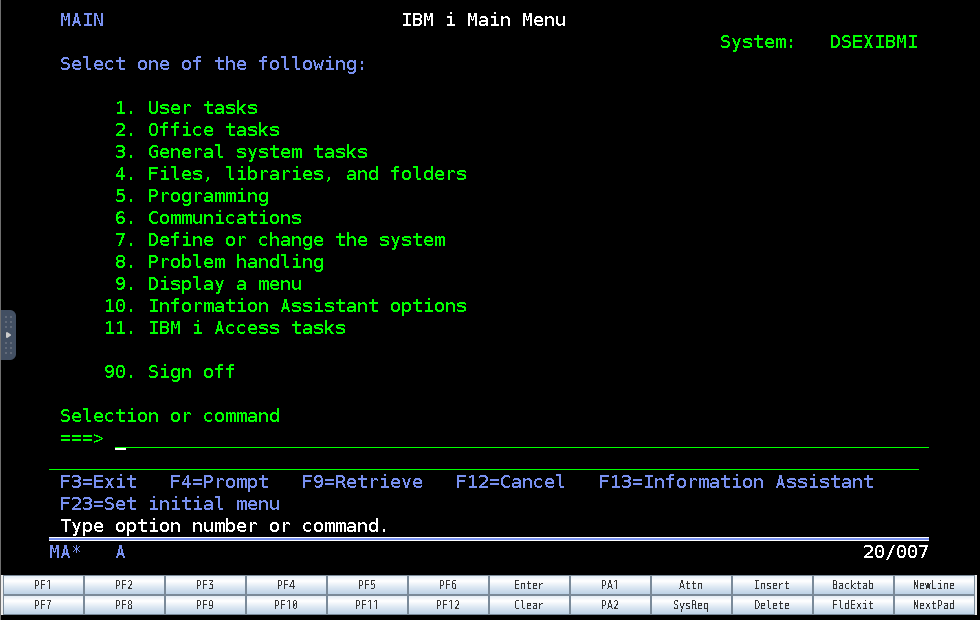
The commands in the following sections can be entered on the Selection or command line unless otherwise noted.
5. Start the IBM i host servers
ODBC uses IBM i host-server services. Start them with:
STRHOSTSVR SERVER(*ALL)
For a dedicated environment you can verify the server jobs with IBM i administration tools such as WRKACTJOB, or verify the network ports from the Windows side.
If you intentionally use an SSH tunnel, also start the IBM i SSH server:
STRTCPSVR SERVER(*SSHD)
SSH is not required when your Windows machine can route directly to the IBM i host-server ports.
Standard IBM i Access host-server ports
Common non-TLS ports are:
| Port | IBM i Access service |
|---|---|
| 449 | server mapper |
| 8470 | central |
| 8471 | database |
| 8472 | data queue |
| 8473 | file |
| 8474 | network print |
| 8475 | remote command |
| 8476 | sign-on |
Your security team may expose only the required services, use SSL equivalents, or route them through a private network. Follow local policy.
6. Create a dedicated IBM i test user
Ask the IBM i administrator to create a normal user profile. A representative command is:
CRTUSRPRF USRPRF(DSELAB) PASSWORD(<temporary-password>) USRCLS(*USER) STATUS(*ENABLED) TEXT('DSE read-only test user')
Do not use a literal password from this help topic. Many sites also require the user to change an initial password at first sign-on.
If the account is created through an administrative screen instead of a command, the objectives are the same:
- status is enabled
- the password is active
- the account is not expired
- the account is not unnecessarily privileged
If DSE reports an authentication failure after the network test succeeds, sign on once through the normal IBM i login flow and confirm that the password is not expired.
7. Create a validation library
Create a small library that is safe to use for connector validation:
CRTLIB LIB(DSETEST) TEXT('DSE connector validation')
Allow the DSE user to traverse/use the library:
GRTOBJAUT OBJ(DSETEST) OBJTYPE(*LIB) USER(DSELAB) AUT(*USE)
Your production policy may use authorization lists or group profiles instead. That is preferable when it matches your security standard.
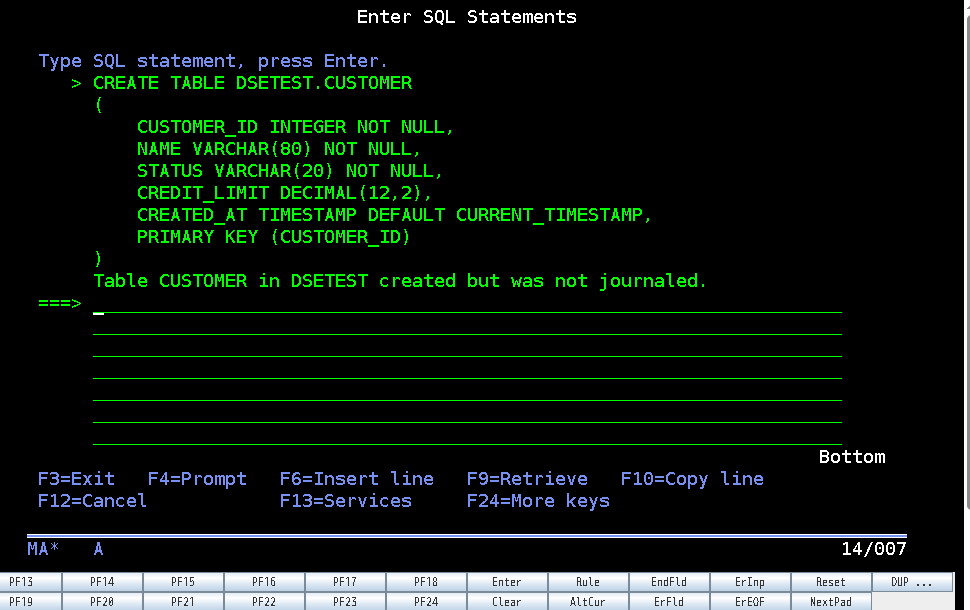
8. Create a validation SQL table
Use Run SQL Scripts in IBM i Access Client Solutions or enter STRSQL if interactive SQL is available.
Create a small table:
CREATE TABLE DSETEST.CUSTOMER
(
    CUSTOMER_ID INTEGER NOT NULL,
    NAME VARCHAR(80) NOT NULL,
    STATUS VARCHAR(20) NOT NULL,
    CREDIT_LIMIT DECIMAL(12,2),
    CREATED_AT TIMESTAMP DEFAULT CURRENT_TIMESTAMP,
    PRIMARY KEY (CUSTOMER_ID)
);
Example of the IBM i SQL screen after creating the table:
Add a few test rows:
INSERT INTO DSETEST.CUSTOMER (CUSTOMER_ID, NAME, STATUS, CREDIT_LIMIT)
VALUES
  (1001, 'ARCO INTERNATIONAL', 'ACTIVE', 25000.00),
  (1002, 'NORTHWIND IBM I LAB', 'ACTIVE', 15000.00),
  (1003, 'CONTOSO LEGACY', 'HOLD', 5000.00);
Grant read access:
GRANT SELECT ON DSETEST.CUSTOMER TO USER DSELAB;
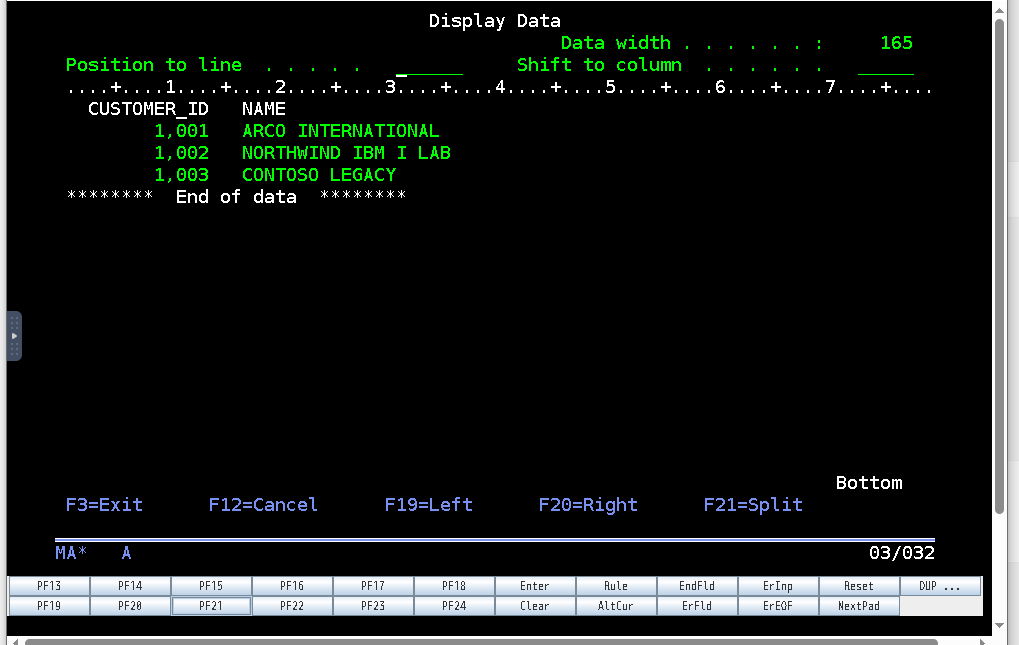
Then verify:
SELECT * FROM DSETEST.CUSTOMER ORDER BY CUSTOMER_ID;
The DSE account should be able to read the table without being able to modify it. Example result from the IBM i validation table:
9. Install the Windows IBM i ODBC driver
On the Windows workstation, install the IBM i Access Client Solutions Windows Application Package that contains the 64-bit IBM i Access ODBC driver.
After installation, open the 64-bit ODBC Data Source Administrator:
C:\Windows\System32\odbcad32.exe
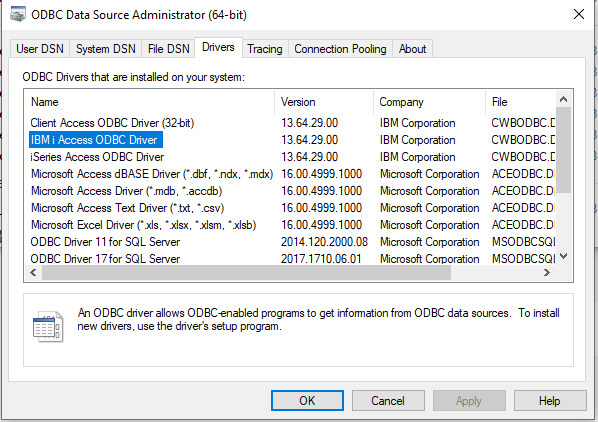
On Drivers, verify that a driver named similar to this is present:
IBM i Access ODBC Driver
The 64-bit ODBC administrator should list IBM i Access ODBC Driver similar to this:
Windows naming is confusing:
System32\odbcad32.exeis the 64-bit ODBC administrator on 64-bit Windows. Do not configure only a 32-bit DSN if DSE is running 64-bit.
10. Choose direct routing or an SSH tunnel
Option A — direct/private route
Use this when the DSE workstation can reach IBM i directly. Test the database and sign-on ports, for example:
Test-NetConnection <ibmi-host> -Port 8471
Test-NetConnection <ibmi-host> -Port 8476
TcpTestSucceeded : True means the network path is open; it does not prove the user/password or database authorization.
Option B — SSH tunnel
Use this only when your design intentionally exposes SSH but not the IBM i host-server ports directly.
A representative PowerShell command is:
ssh -N -T `
  -L 449:127.0.0.1:449 `
  -L 8470:127.0.0.1:8470 `
  -L 8471:127.0.0.1:8471 `
  -L 8472:127.0.0.1:8472 `
  -L 8473:127.0.0.1:8473 `
  -L 8474:127.0.0.1:8474 `
  -L 8475:127.0.0.1:8475 `
  -L 8476:127.0.0.1:8476 `
  -o ExitOnForwardFailure=yes `
  -o ServerAliveInterval=15 `
  -o ServerAliveCountMax=3 `
  <ssh-user>@<ibmi-public-or-bastion-host>
Leave that PowerShell window open while DSE is using the tunnel. A successful ssh -N -T session often appears to be doing nothing; that is expected because it is only forwarding ports.
Then verify locally:
Test-NetConnection 127.0.0.1 -Port 449
Test-NetConnection 127.0.0.1 -Port 8471
Test-NetConnection 127.0.0.1 -Port 8476
With a tunnel, the ODBC system name/host is normally 127.0.0.1.
11. Create a 64-bit System DSN
Open the 64-bit ODBC administrator and select System DSN → Add → IBM i Access ODBC Driver.
A useful name is:
DSE_IBMI_DEV
For a direct connection, set the IBM i system to the real reachable host name or IP. For an SSH tunnel, set it to:
127.0.0.1
Configure the library/catalog list so the library you want DSE to discover is included. The tested DSE connection string uses:
DBQ=DSETEST,QGPL;LIBVIEW=0;
This is important. If the driver catalog is limited to QGPL, DSE can connect successfully yet never show DSETEST.CUSTOMER.
12. Test IBM i ODBC outside DSE
Before blaming DSE, prove the DSN with a small PowerShell ODBC test.
$cred = Get-Credential -UserName 'DSELAB' -Message 'IBM i ODBC credentials'
$password = $cred.GetNetworkCredential().Password
$connectionString = "DSN=DSE_IBMI_DEV;UID=$($cred.UserName);PWD=$password;DBQ=DSETEST,QGPL;LIBVIEW=0;"

$conn = New-Object System.Data.Odbc.OdbcConnection($connectionString)
$conn.Open()

$cmd = $conn.CreateCommand()
$cmd.CommandText = 'SELECT CUSTOMER_ID, NAME, STATUS, CREDIT_LIMIT FROM DSETEST.CUSTOMER ORDER BY CUSTOMER_ID'
$reader = $cmd.ExecuteReader()
$table = New-Object System.Data.DataTable
$table.Load($reader)
$table | Format-Table -AutoSize

$conn.Close()
Expected result: the connection opens and the three test customers are displayed.
If this external test fails, fix the driver/network/account/library problem before continuing in DSE.
13. Configure IBM i in DSE
In DSE:
- expand Mainframe
- select IBM i / AS400 (ODBC configure)
- click Edit connection
- use either a DSN-based or direct-driver connection string
- save the connection
- click Test connection
DSN-based example
DSN=DSE_IBMI_DEV;UID=DSELAB;PWD=<password>;DBQ=DSETEST,QGPL;LIBVIEW=0;
Direct-driver example
Driver={IBM i Access ODBC Driver};System=<ibmi-host>;Uid=DSELAB;Pwd=<password>;DBQ=DSETEST,QGPL;LIBVIEW=0;
When an SSH tunnel is used, <ibmi-host> is normally 127.0.0.1.
Do not choose Generic ODBC for this source
Select the actual IBM i / AS400 source type. The IBM i connector contains IBM-specific metadata and preview compatibility behavior that a generic ODBC connector does not know about.
14. Load IBM i tables and validate the connector
After Test connection succeeds:
- click Load tables
- find schema/library
DSETEST - select
CUSTOMER - open Table info and confirm the column list
- open Preview and confirm rows appear
- select a preview row and open Row details
- click Run sample query
A representative query is:
SELECT * FROM "DSETEST"."CUSTOMER" FETCH FIRST 100 ROWS ONLY
DSE's IBM i connector has compatibility handling for IBM i/native objects that reject a trailing FETCH FIRST clause: DSE can remove the server-side limit and apply the requested row cap on the client. If you write custom SQL manually and the host rejects the clause for a native/DDS-backed file, remove the clause or query an SQL table.
15. IBM i troubleshooting
Test connection returns False
Check, in order:
- 64-bit IBM i Access ODBC driver is installed
- DSN is created in the 64-bit ODBC administrator
- host/tunnel is correct
- ports 8471 and 8476 are reachable
STRHOSTSVR SERVER(*ALL)has been run- user is enabled and password is valid
- user is allowed to sign on remotely
The SSH command looks frozen
For ssh -N -T, this is normal after authentication. Leave the terminal open and test 127.0.0.1:8471 from a second PowerShell window.
Password expired
Sign on with the IBM i account through the normal login flow, change the password, then retry ODBC. A network connection may be healthy even when the host rejects an expired password.
Connection succeeds but DSE shows only QGPL objects
Add the intended libraries to DBQ, for example:
DBQ=DSETEST,QGPL;LIBVIEW=0;
Then reconnect and reload tables.
DSETEST.CUSTOMER does not appear
Confirm all of the following:
DSETESTexists- the DSE account has
*USEon the library - the account has
SELECTon the table DSETESTis included inDBQ- you reloaded the object list after editing the connection
Preview is empty for a table that contains data
Run the same SELECT outside DSE using the ODBC test. If it succeeds externally, confirm that DSE is using IBM i / AS400, not Generic ODBC, and review the DSE log for the generated SQL.
SQL0104 / token error around FETCH FIRST 100 ROWS ONLY
DSE contains an IBM i-specific preview path intended to handle this case for native/DDS-backed objects. If the error is still visible:
- verify that the IBM i connector plugin is loaded
- verify that the specific IBM i connector wins over Generic ODBC
- remove a trailing semicolon from a manually entered single ODBC statement
- test a normal SQL table such as
DSETEST.CUSTOMER
Columns are missing
The IBM i connector first uses IBM i catalog metadata and then falls back to generic ODBC metadata. Check that the account can see IBM i catalog information and can read the target object.
IBM z/OS Db2
16. Requirements
The DSE connector is implemented through ODBC, but a real z/OS connection requires infrastructure outside DSE:
- reachable z/OS host
- Db2 subsystem/location that accepts DRDA TCP/IP connections
- DRDA port (often site-specific; do not assume a default without asking the Db2 administrator)
- Db2 user credentials
- 64-bit IBM Data Server Driver for ODBC and CLI on the DSE workstation
- a valid Db2 Connect licensing path appropriate for the environment
Validate the IBM driver and licensing outside DSE first.
DSE connection-string template
Driver={IBM DB2 ODBC DRIVER};Database=<location>;Hostname=<zos-host>;Port=<drda-port>;Protocol=TCPIP;Uid=<user>;Pwd=<password>;
Then use the same DSE sequence: Test connection → Load tables → select schema/table → Preview → Row details → sample query.
A representative Db2 query is:
SELECT * FROM "<SCHEMA>"."<TABLE>" FETCH FIRST 100 ROWS ONLY
Do not claim a z/OS Db2 environment is certified merely because the connector code exists. Commercial certification should use a real licensed/reachable z/OS endpoint.
VSAM, IMS, and CICS adapters
17. Two supported adapter modes
VSAM, IMS, and CICS deliberately do not contain raw native-protocol implementations. They use one of these modes:
ODBC mode
Adapter=ODBC;ConnectionString="DSN=YOUR_VSAM_ADAPTER;Uid=<user>;Pwd=<password>";
Use this when middleware or a virtualization product exposes the mainframe data as tabular ODBC objects.
REST mode
Adapter=REST;BaseUrl=https://<adapter-host>;HealthPath=/health;ObjectsPath=/dse/objects;ColumnsPath=/dse/objects/{name}/columns;QueryPath=/dse/query;BearerToken=<token>;
Use REST when your gateway/service layer can expose object metadata and execute a query/command contract.
18. REST adapter contract
By default, DSE expects these operations:
Health/test
GET /health
Any successful HTTP status can be used as the connection test. If HealthPath is omitted, DSE can test the objects endpoint instead.
Object discovery
GET /dse/objects
DSE accepts a top-level array or arrays named commonly as objects, tables, items, value, resources, services, or transactions.
Representative response:
{
  "objects": [
    { "schema": "CICSDEV", "name": "CUSTOMER_SERVICE", "kind": "SERVICE" }
  ]
}
Column/field discovery
GET /dse/objects/{name}/columns
Representative response:
{
  "columns": [
    { "name": "CUSTOMER_ID", "dataType": "string", "ordinal": 1, "primaryKey": true },
    { "name": "NAME", "dataType": "string", "ordinal": 2 },
    { "name": "STATUS", "dataType": "string", "ordinal": 3 },
    { "name": "CREDIT_LIMIT", "dataType": "decimal", "ordinal": 4, "nullable": true }
  ]
}
DSE understands common aliases such as fields, items, value, and properties for the array.
Query/command execution
POST /dse/query
Content-Type: application/json
Default request body:
{
  "command": "SELECT * FROM CICSDEV.CUSTOMER_SERVICE FETCH FIRST 100 ROWS ONLY;",
  "sourceType": "CICS"
}
The command property name can be changed with CommandProperty= if the adapter expects a different field.
Direct GET escape hatch
For a REST-backed source, DSE also recognizes a command in this form:
get /some/path;
DSE performs the GET and converts the returned JSON into a table for inspection.
19. REST authentication options
The connector can use:
BearerToken=for an existing OAuth/JWT tokenTokenUrl=,ClientId=,ClientSecret=, and optionalScope=for OAuth2 client credentialsUsername=/Uid=plusPassword=/Pwd=for HTTP Basic authenticationApiKey=plus optionalApiKeyHeader=(default header isX-API-Key)
Do not put long-lived secrets in screenshots or source control. Use environment-specific secret management for deployed workloads.
CICS
20. CICS configuration
Typical REST template:
Adapter=REST;BaseUrl=https://<cics-adapter>;HealthPath=/health;ObjectsPath=/dse/objects;ColumnsPath=/dse/objects/{name}/columns;QueryPath=/dse/query;BearerToken=<token>;
A successful adapter can expose CICS services/transactions as DSE objects. Example query output:
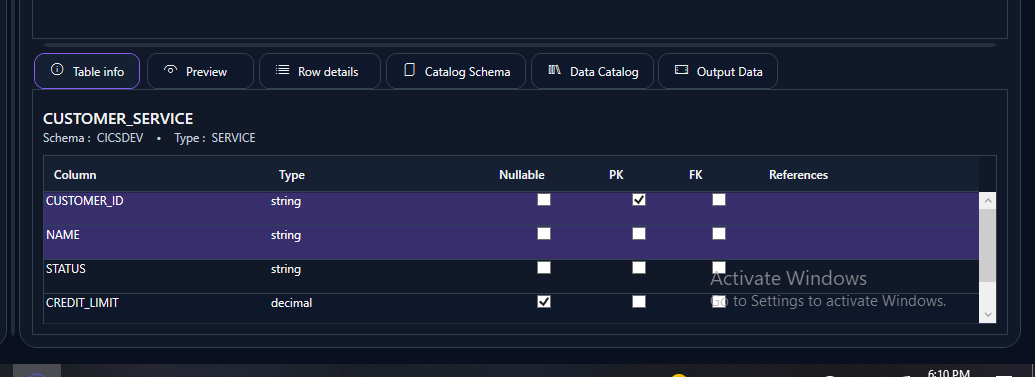
DSE can also show field metadata supplied by the adapter:
For production, place the DSE adapter behind your approved CICS/API security layer rather than exposing CICS internals directly.
VSAM
21. VSAM configuration
DSE supports VSAM only through middleware/virtualization or a compatible REST adapter. Raw native VSAM protocol access is not embedded in DSE.
ODBC example:
Adapter=ODBC;ConnectionString="DSN=YOUR_VSAM_ADAPTER;Uid=<user>;Pwd=<password>";
REST example:
Adapter=REST;BaseUrl=https://<vsam-adapter>;HealthPath=/health;ObjectsPath=/dse/objects;ColumnsPath=/dse/objects/{name}/columns;QueryPath=/dse/query;BearerToken=<token>;
A virtualized KSDS can appear as a table-like object. Example:
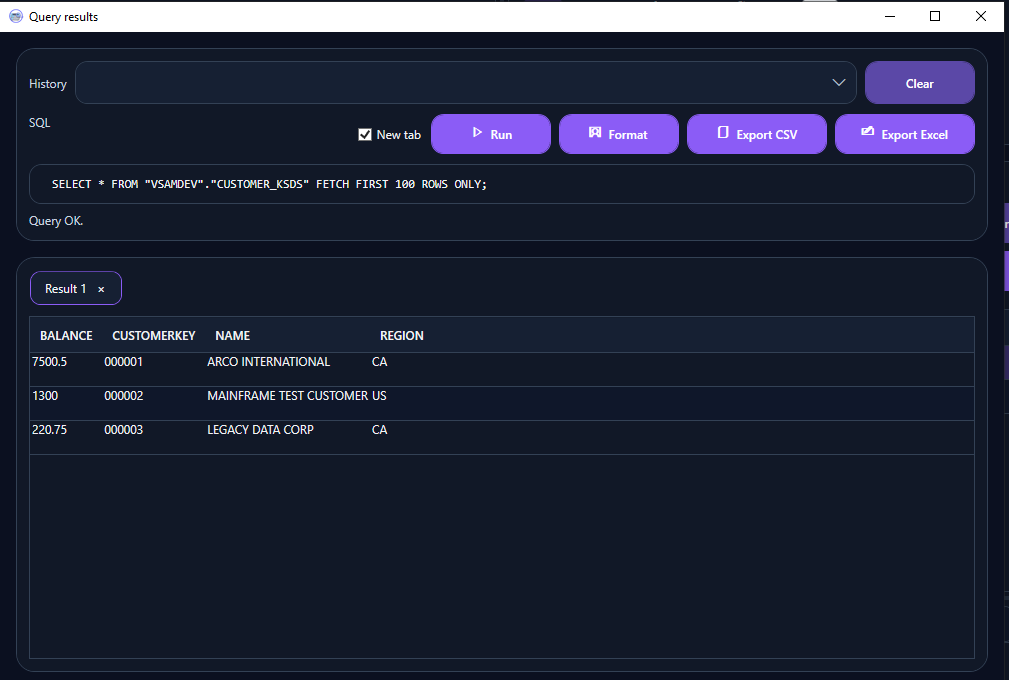
Your adapter is responsible for mapping VSAM keys, record layouts, copybooks, encodings, and update semantics into the tabular/JSON contract DSE consumes.
IMS
22. IMS configuration
REST example:
Adapter=REST;BaseUrl=https://<ims-adapter>;HealthPath=/health;ObjectsPath=/dse/objects;ColumnsPath=/dse/objects/{name}/columns;QueryPath=/dse/query;BearerToken=<token>;
ODBC/virtualization example:
Adapter=ODBC;ConnectionString="DSN=YOUR_IMS_ADAPTER;Uid=<user>;Pwd=<password>";
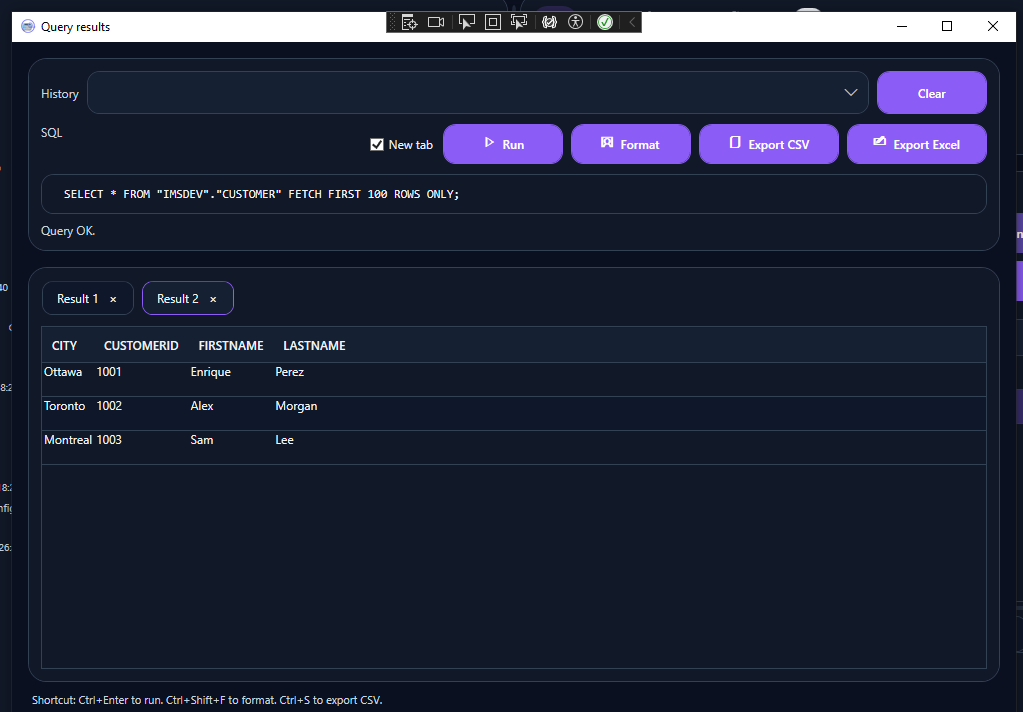
The middleware decides how IMS databases, segments, keys, and hierarchies are projected into DSE objects and fields. DSE then treats the projection as read-oriented tabular metadata/data. Example IMS adapter query result in DSE:
Production acceptance checklist
23. IBM i acceptance
Before calling IBM i ready for use, verify:
- 64-bit IBM i Access ODBC driver installed
- direct route or SSH tunnel stable
- host servers running
- dedicated read account enabled
- DSE account has only required library/object access
- external ODBC connection succeeds
- DSE Test connection succeeds
DSETEST.CUSTOMERor an approved production object is visible- columns load correctly
- Preview returns rows
- Row details shows the selected row
- sample query succeeds
- connection secrets are not stored in documentation/source control
24. z/OS Db2 acceptance
- real z/OS Db2 endpoint available
- IBM 64-bit ODBC/CLI driver installed
- Db2 Connect licensing path verified
- host/location/DRDA port confirmed by Db2 administrator
- external driver connection succeeds
- DSE Test connection succeeds
- schemas/tables load
- columns, preview, row details, and sample query work
25. VSAM / IMS / CICS acceptance
- adapter/virtualization layer is an approved component
- adapter health endpoint succeeds
- object endpoint returns stable identifiers
- field metadata endpoint returns predictable types/ordinals
- query endpoint returns JSON/tabular data DSE can convert
- authentication is configured without embedding long-lived secrets
- DSE Test connection, load objects, metadata, preview, and query all succeed
26. Information to collect when asking for support
Provide:
- DSE version
- source type selected in DSE
- sanitized connection string (remove password/token/client secret)
- 64-bit driver name/version
- whether the path is direct, VPN, private network, or SSH tunnel
- exact DSE error text
- relevant DSE log lines
- whether the same connection/query succeeds outside DSE
- target library/schema/object name
Never send a password, private SSH key, OAuth client secret, or unredacted production token.